
This guide will help you understand and effectively use the Meal Plan tool, an essential feature for managing the meal service schedule.
You will learn how to navigate to the appropriate section, apply filters to customize reports, and gain a clear overview of the daily meal requirements for your guests. This guide will also provide information on how to view, print, or download the detailed report.
- Navigate to Menu > Reports
- Click on Meal Plan
- Apply the filters at the top to display a customized search:
- Date - Select the day
- Property - For multi-property units, displays the meal report based on this criterion.
This option is available only for multi-property accounts.
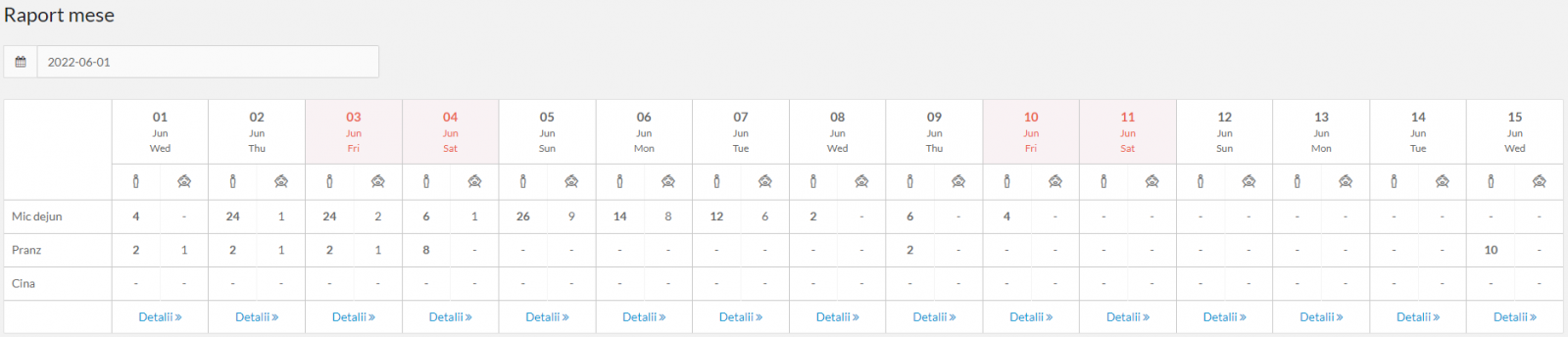
- The system will immediately display a complete meal plan for the selected day and the following two weeks. This overview allows you to efficiently plan your resources and tasks.
- The system displays details about meal service for each day, including the number of portions for each meal type, separated for adults and children. This precise breakdown ensures a clear understanding of the daily meal service requirements.
📌 Note: Click on the Details button for a deeper understanding of the meal requirements for each guest.
📌 Note: To print the report, click the Print button.
To download the report in Excel format, click the Download button.
✅ Done! You've completed the information for this section!
