
This guide will help you understand and effectively use the Availability Report to monitor the real-time status of rooms in your property. You will learn how to access the report, apply relevant filters, and interpret the displayed data, so you can make informed decisions and optimize room occupancy. Follow the detailed steps to make the most of this essential tool in managing your property.
- Navigate to Menu > Reports
- Click on Availability Report
- Filter by:
- Date - Choose the desired period.
- Property - For units with multiple properties, the report will show based on this criterion.
This option is available only for multi-property accounts.
- Check additionally:
- Without Allocations - If you want to see the total availability, including rooms from Allocations.
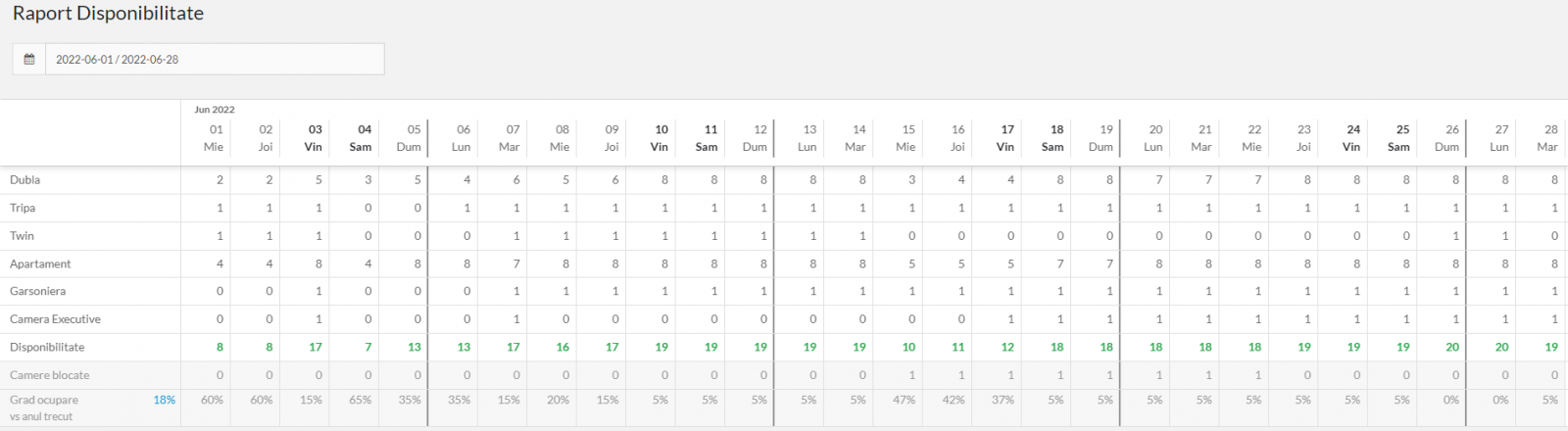
- Extended Report - If you want a broader overview of the rooms, including how many rooms are blocked from each type and the occupancy rate for each room type.
- The system will then display a list of all room types, blocked rooms, and the occupancy rate. For each day, the column contains the number of available rooms for each type, as well as a total. Additionally, you can view the number of blocked rooms and the occupancy rate.
📌 Note: To print the report, click the Print button.
✅ Done! You’ve completed the information for this section!
