
This guide helps you add, modify, and configure booking sources in your hotel system so you can efficiently manage the associated information and commissions. You will learn how to add a new source, edit existing sources, set commissions for your partners, and activate automatic features like sending booking confirmation emails, all to improve your workflow and guest experience.
- Navigate to Menu
- Open the Reservation Sources section.
Add a New Source
- Click the Add Source button.
- Fill in the required information about the new source.
Once all information is completed, save the changes!
Edit an Existing Source
- Click the Edit button next to the source you want to modify.
- Add the new details.
Once all information is completed, save the changes!
📌 Note: Default source names cannot be edited. These are system-defined and meant to reflect standard booking sources in the hospitality industry.
Add a Commission
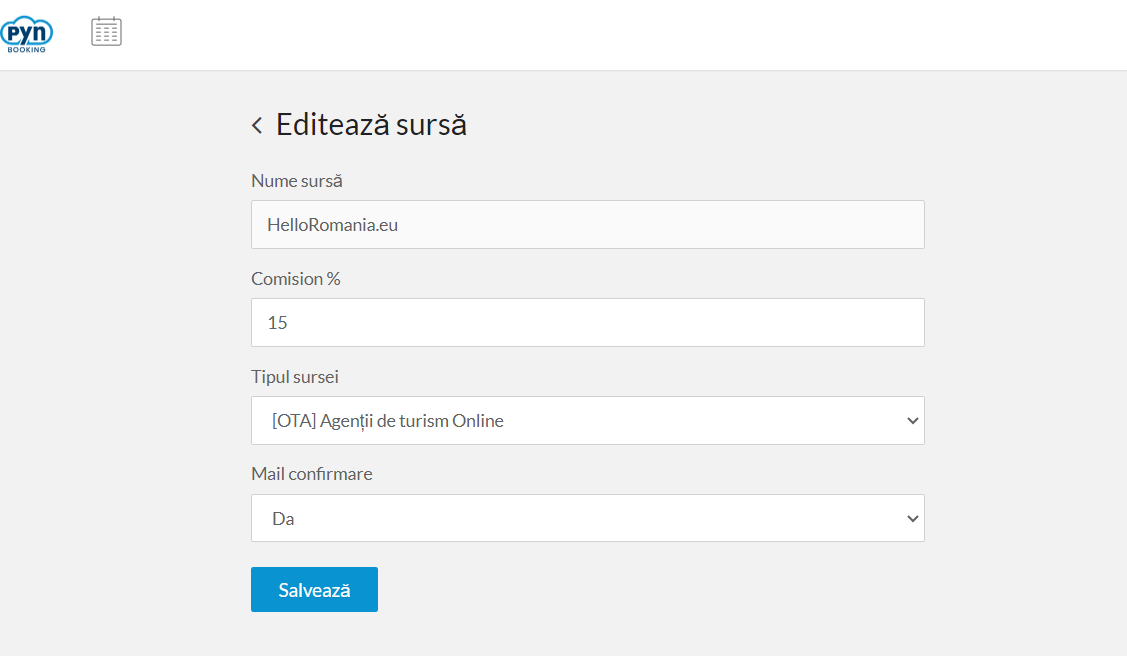
For Helloromania and Hotelbeds partners, the system allows you to input the commission paid to these partners. This feature is useful as it sends gross rates to these partners via the Channel Manager.
- Click the Edit button next to the source you want to modify.
- Add the desired commission percentage in the Commission % field.
Once all information is completed, save the changes!
Enable the Commission Function for Reservations
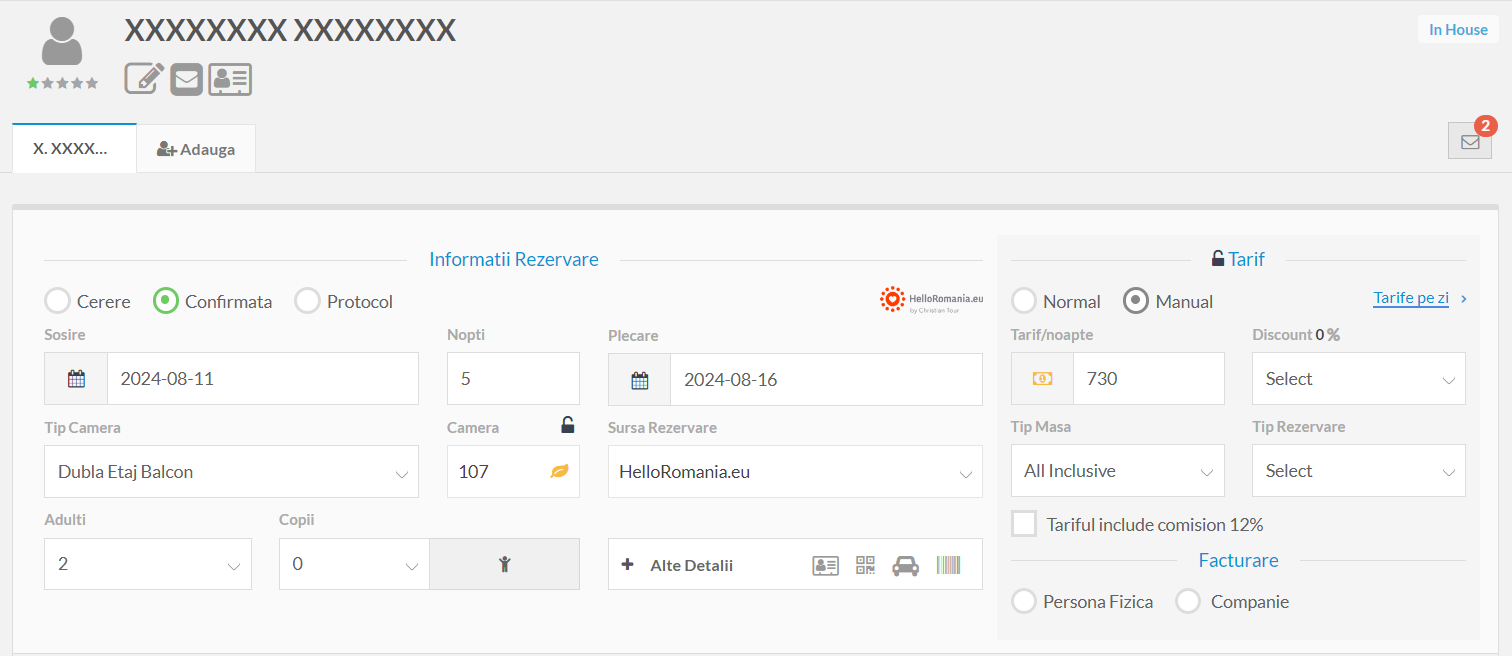
- Access the booking received from the partner through the Channel Manager.
- Check the option Rate includes commission...% to activate the discount feature.
- The booking rate will be automatically adjusted by the commission value specified in Partner Sources.
Add Automatic Reservation Confirmation Emails by Source
The Reservation Confirmation Email function allows you to decide whether to send automated booking confirmation emails to guests based on the source, immediately after a booking is added to the system.
To configure this function, follow these steps:
- Click the Edit button next to each booking source.
- In the Confirmation Email section, select Yes if you want to send a confirmation email to guests after the booking is made, or No if you prefer not to send this email.
- Once all information is completed, save the changes!
📌 Note: If you work with sources that automatically send confirmation emails directly from their platform, we recommend selecting No in the Confirmation Email field to prevent duplicate emails.
✅Done! You’ve gone through the information for this section!
