
This guide helps you configure and manage the integration with the e-Bill system in Pynbooking, including the automatic submission of invoices to SPV, managing their status, and importing invoices from suppliers for efficient tax management.
- Send issued invoices to SPV.
- Import invoices from suppliers in SPV.
- Navigate to Menu > Property Settings.
- Open the e-Bill section.
📌 Note: The connection to e-Bill can only be made using the admin account with DPO rights.
Send issued invoices to SPV
Log in to SPV (Virtual Private Space):
If you are using a stick for authentication in SPV (digital signature), insert the stick into the computer.
If you are using a token for authentication in SPV (digital signature), open the application with which you authenticate.
Authorize the Pynbooking platform:
- Click on the Menu button and then on Property Settings.
- Open the e-Bill section.
- Authorize the Pynbooking platform.
❗Invoices issued to individuals with or without residency in Romania are sent to SPV.
The mandatory fields for invoices issued to individuals are:
- Beneficiary's full name.
- Beneficiary's complete address.
The CNP (Personal Numeric Code) is NOT mandatory for issuing and sending invoices.
If, for any reason, the CNP is not filled in the guest's profile, this field will remain blank.
✅ Done ! From now on, the issued invoices will be automatically sent to SPV during Night Audit.
📌 Note: To view the status of issued invoices, follow the steps below:
- Click on the Menu button.
- Click on Invoices in the Financial section.
.png)
Invoice Status Legend : There are 4 statuses for displaying the xml button depending on the state of the invoice:
- Not sent - the xml button is colored grey.
- Successfully sent - the xml button is colored green.
- Pending - the xml button is coloured yellow, and the invoice is in the process of being sent.
- Error - the xml button is coloured red, and the invoice encountered errors during sending.
In case of an error, click the xml button, read the displayed error, fix it, and resend the invoice to SPV using the Send XML SPV button.
Edit Fiscal Invoices directly from the Financial section
- Click on Invoices in the Financial section
- Press the XML button
- Identify inconsistencies
- Edit the data
- Press Save
- Press Send XML to SPV
Import invoices from suppliers
Enable import from SPV:
- Click on Menu, then click on Property Settings, and go to the e-Bill section.
- Slide the Automatically import invoices during night audit button to Yes.
✅Done! From now on, the invoices issued by suppliers will be automatically imported during Night Audit.
To mark invoices as paid, follow these steps:
- Access Menu, click on Financial, then click on Retrieve e-Bill.
- Click on the Payment Date column, select the payment date from the calendar, and the payment status will be confirmed, and the red colour will change to green.
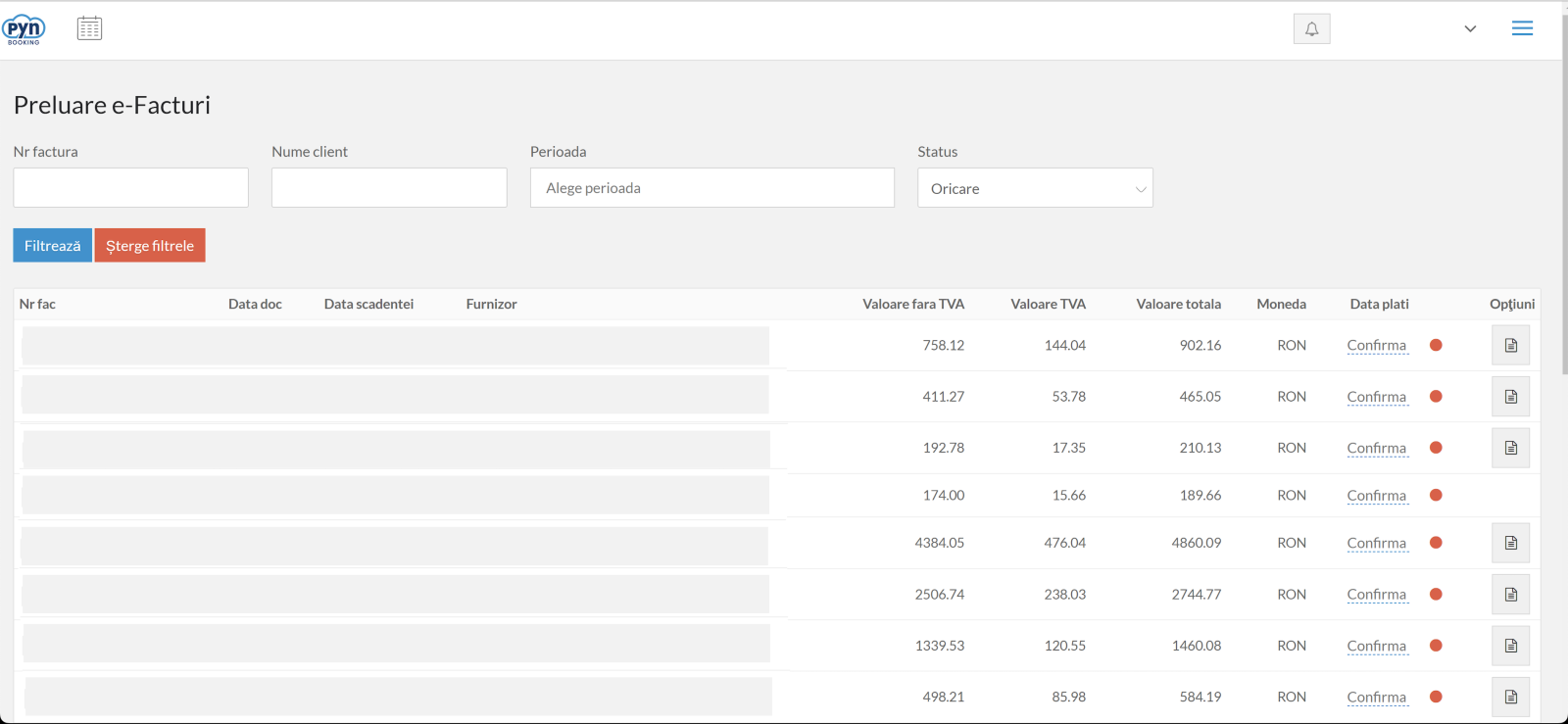
📌 Note: Invoices from suppliers uploaded to SPV in the last 3 days are automatically imported during Night Audit.
Invoices of type 751 (closed with cash/card) will automatically be marked as paid.
Invoices from the current day are updated manually by pressing the Update button visible in the bottom right corner. (Only one update per hour can be performed.) To view PDF invoices, in the Options section, to the right of the table, click on the document icon.
After completing all the information, save the changes!
✅Done! You’ve added the details for this section!
Frequently Asked Questions (FAQ)
❓ Q: How can I verify PynWebService functionality and obtain the computer’s IP address?
Answer:
According to the new regulations, it is mandatory for the address of clients from Romania to include the county. If this information is missing from the guest's profile, the invoice will not be imported correctly.
Solution:
Check the guest's profile and make sure the county is filled in.
Update the address with the county in the dedicated fields.
After completing this information, the invoice data will be validated correctly.
