
This guide will help you enable and manage the automatic import of invoices from SPV, providing you with clear steps and helpful explanations. From enabling automatic receipt of invoices to marking them as paid, you'll learn how to optimize your financial management process. Follow the instructions below to simplify invoice management and save time!
- Navigate to Menu
- Open the Collection of e-Invoices section.
Enable import from SPV:
- Click Menu,
- Select Property Settings,
- Go to the e-Invoice section.
- Toggle the Automatically import invoices during night audit button to Yes.
Done! From now on, invoices issued by suppliers will be automatically imported during the Night Audit.
Mark invoices as paid
- Access Menu,
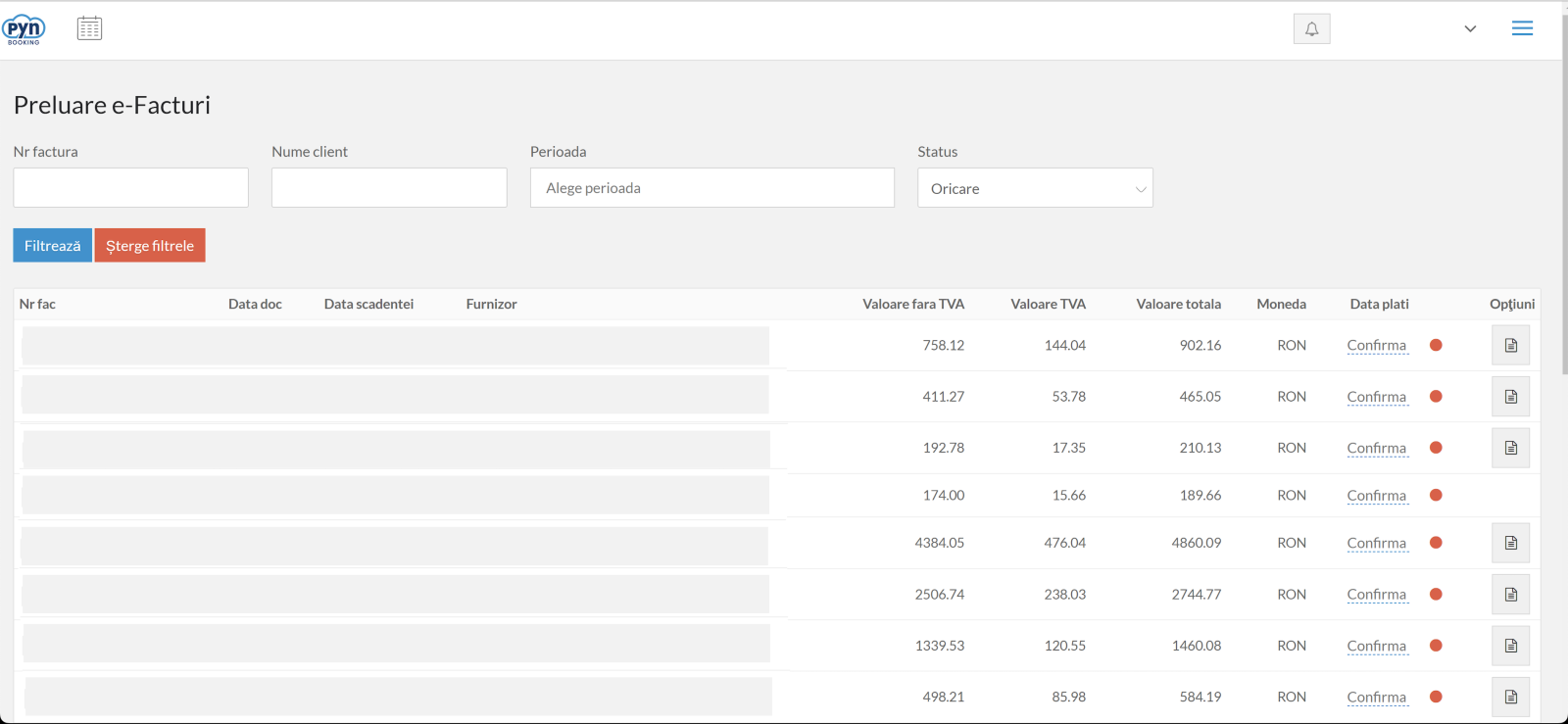
- Click on Collection of e-Invoices in the Financial section,
- Use the available filters:
- Invoice number
- Client name
- Period
- Status
- The information will be displayed in a table with the following structure:
- Invoice number
- Document date
- Due date
- Supplier
- Amount excluding VAT
- VAT amount
- Total amount
- Currency
- Payment date
- Options
- Click on the Payment date column and select the date when the payment was made from the calendar. The payment status will be confirmed, and the red color will change to green.
- Use the Options button for additional actions.
📌 Note:Supplier invoices uploaded to SPV within the last 3 days are automatically imported during the Night Audit.
Type 751 invoices (closed with cash/card) will be automatically marked as paid.
Invoices from the current day are updated manually by clicking the Update button visible in the bottom-right corner. (Only one update per hour can be performed.)
To view PDF invoices, go to the Options section on the right side of the table and click the document icon.
✅Done! You’ve gone through the information for this section!
