
This guide will help you generate detailed reports of user activities in the system. Follow the steps below to access and customize the desired report:
You can also filter actions by user to view the activity of each person in the system throughout the day.
- Navigate to Menu > Reports
- Click on Login Report
- Select Date
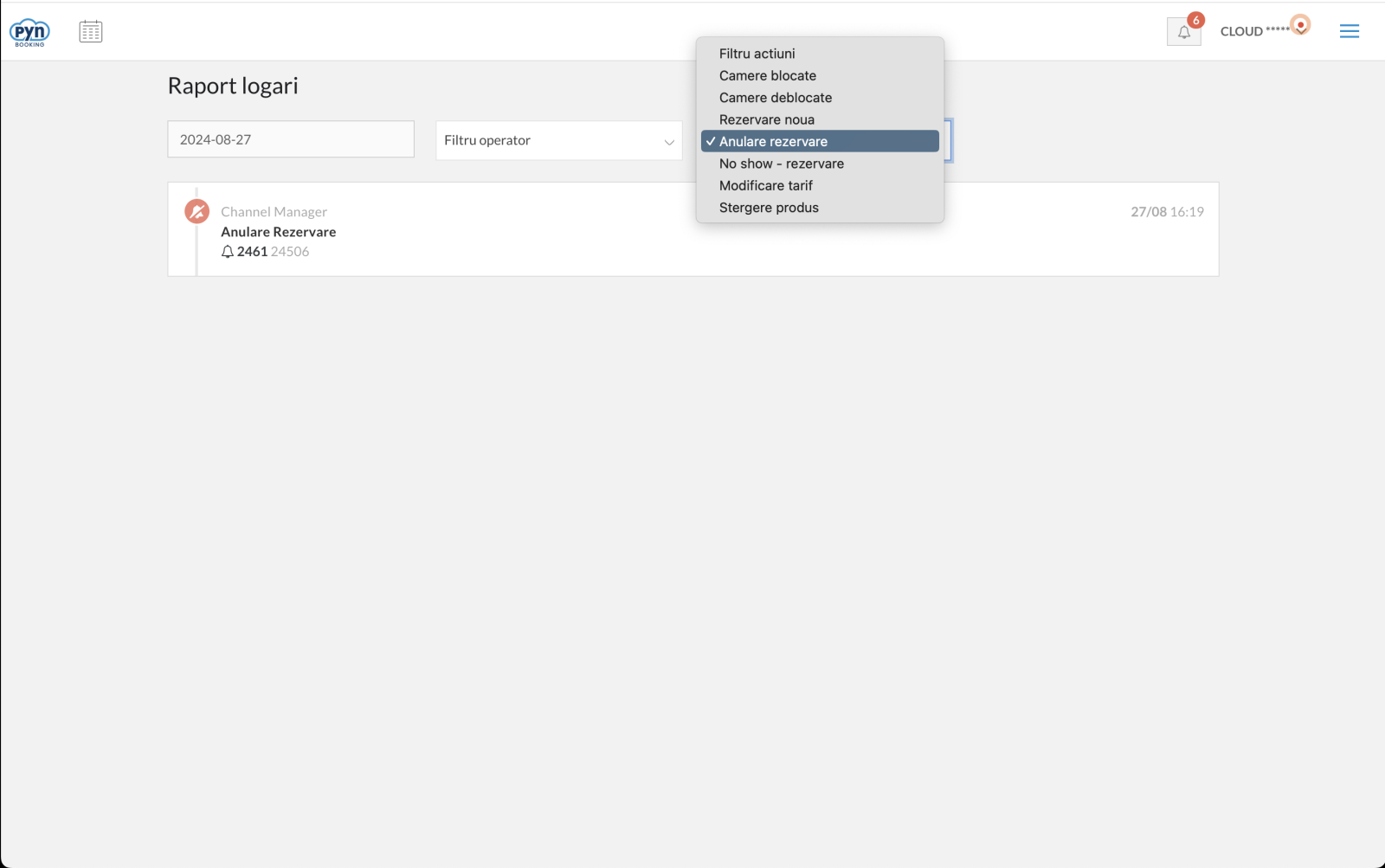
- Customize the report display using filters
Actions can be filtered by the following criteria:
- Blocked rooms
- Unblocked rooms
- New reservation
- Reservation cancellation
- No-show reservation
- Rate change
- Product deletion
There is also a filter for each user.
- User
The system displays actions performed by users throughout the day.
✅Done! You have completed the information for this section!
