
This guide provides the necessary steps to configure the cash register or fiscal printer with the Pynbooking platform.
- Navigate to Menu > Property Settings
- Open the Cash Register section to add the required information.
Requirements:
- IT personnel available for complex configurations.
- Stable internet connection.
- FiscalNet and PynWebService drivers downloaded and installed.
1. Download and Install PynWebService and FiscalNet
1.1. Install PynWebService
- Download the PynWebService driver from here: [Download Link].
- Install the driver on the laptop/PC connected to the cash register.
- Start PynWebService:
Navigate to Start > PynWebService or locate it in the folderC:\Program Files (x86)\PynBooking\PynWebService. - Verify functionality:
Right-click the PynWebService icon in the taskbar and click Start.
Open a browser and go to http://localhost:8080. A message displaying Status OK should appear.
.png)
1.2. Install FiscalNet
- Download the FiscalNet driver from here: [Download Link].
- Install the FiscalNet driver on the same laptop/PC.
- Start FiscalNet and check if it detects the cash register.
- If FiscalNet does not start automatically:
Manually install DUDE from the folderC:\FiscalNet\Servers\DUDESetup. - Add the FiscalNet license:
The first 30 days are free. Afterward, purchase the license from an authorized distributor.
Confirm the license activation (the company name should be displayed in the FiscalNet interface).
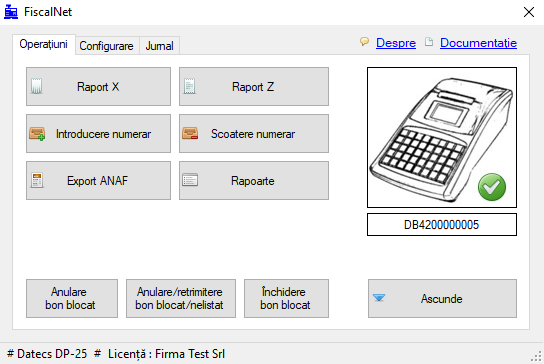
2. Configure the Cash Register
- Turn on the cash register.
- Connect the cash register to the laptop/PC using the USB cable.
- Set the PC Connection Mode:
- For Datecs:
Press and hold the ON button until "MENU 1) Sales" appears.
Press 6 and confirm that "PC Connection" is displayed. - For Tremol:
Press MODE until "REG OPER" appears.
Press 0, then TOTAL. The screen should display 0.00.
3. Settings in the Pynbooking Application
3.1. Configure for a Single Device
- Navigate to Menu > Property Settings > Cash Register.
- Fill in the following:
- Driver: FiscalNet
- Pyn Web Service IP:
localhost:8080 - VAT Rates: Select the appropriate letters.
- Payment Methods: Choose the appropriate types.
- Click Check to test the connection.
📌 Note: If port 8080 is used by another application, change it in PynWebService and update it in Pynbooking (e.g., 8081).
3.2. Configure for Multiple Devices
- Set a fixed IP for the device connected to the cash register.
- Navigate to Menu > Property Settings > Cash Register and fill in:
- Driver: FiscalNet
- Pyn Web Service IP:
192.168.0.100:8080
- Follow the same settings as for a single device.
4. Verify Functionality
- Navigate to Menu > Financial > Fiscal Reports.
- Issue an X Report and confirm it is printed.
Fiscal Printer Configuration (Athlos/Epson)
- Install the fiscal printer with the help of a technician.
- Navigate to Menu > Property Settings > Cash Register and fill in:
- Driver: Network Printer
- Printer IP: Enter the provided IP.
- VAT Rates and Payment Methods.
- Test: Issue an X Report.
Support and Assistance
- Install remote support software (TeamViewer, AnyDesk, or UltraViewer).
- Submit a ticket in the Pynbooking Support Center.
- Intervention cost: €75 for reconfiguration.
✅Done! You have added the information for this section!
Frequently Asked Questions (FAQ)
❓ Q: How can I verify PynWebService functionality and obtain the computer’s IP address?
Answer:
Access the local application:
- Open a browser on the computer where PynWebService is installed.
- Enter http://localhost:8080 in the address bar and press Enter.
- If the program is running correctly, you will see a response with Status OK and the computer name.
Note the displayed IP address:
- If the application shows the local IP address, write it down. It will be needed to verify the connection.
Confirm the IP address manually (optional):
Windows:
- Open Command Prompt and run the command: ipconfig.
- Note the value under "IPv4 Address" in the active adapter section (Wi-Fi or Ethernet).
Linux/Mac:
- Open the terminal and run the command: ifconfig or ip a.
- Note the address in the "inet" section of the connected network interface.
Test local access using the IP address:
- Enter in the browser: http://<ip_address>:8080 (replace
<ip_address>with the obtained IP). - If the response is the same (Status OK and computer name), the program is running correctly, and the IP address is confirmed.
Test the network connection from your phone:
- Connect your phone to the same Wi-Fi network as the computer.
- Open the phone browser and enter: http://<ip_address>:8080.
- If you receive the response Status OK and the computer name, it means the phone and computer are on the same network, and communication is functional.
If you encounter issues, check the following:
- The computer’s firewall: Ensure it allows connections on port 8080.
- Wi-Fi network settings: Verify that devices are on the same subnet.
❓ Q: The cash register doesn’t print receipts. What should I check?
Answer: The cash register doesn’t print receipts. What should I check?
- Verify the "PC Connection" mode.
- Ensure the FiscalNet and PynWebService drivers are running.
- Check the connection cables and the Z Report issued in the last 24 hours.
